The Day DISM Saved My Autoupdated PC
Okay, so picture this: it was a Tuesday. Not just any Tuesday, but one of those really productive Tuesdays where you feel like you're crushing it. I'd just gotten my hands on a shiny new script design...

r5yn1r4143
Apr 27
Okay, so picture this: it was a Tuesday. Not just any Tuesday, but one of those really productive Tuesdays where you feel like you're crushing it. I'd just gotten my hands on a shiny new script designed to automate all our Windows updates for a small network. No more manual clicking, no more forgetting to reboot servers – this was going to be the solution. I was practically a hero in the making. I tested it on a non-critical VM, it worked like a charm, and feeling invincible, I decided to roll it out to my own development machine. What could possibly go wrong? Famous last words, right?
TL;DR: I tried to automate Windows Updates with a script, it went hilariously wrong, and my PC became a very expensive paperweight. Thankfully, a little-known DISM command saved the day. Learn from my pain and always have a backup!
The "Uh Oh" Moment: When Updates Go Wild
I fired up my script, feeling smug. It was supposed to check for available updates, download them, install them, and then reboot. Simple. Elegant. Beautiful. The script chugged along, showing progress bars and downloading… then came the installation. This is where things started to get a bit dicey. My PC, usually a trooper, started acting sluggish. Then, a familiar, dreaded blue screen of death (BSOD) flashed for a millisecond before it decided to reboot itself.
My heart sank. "Okay, just a hiccup," I told myself, trying to stay calm. It booted back up, but it was slow. Painfully slow. And then, the error messages started rolling in. Not just one or two, but a whole parade. "Windows Update service did not start correctly." "Component Store Corrupt." My favorite was "Pending file rename operations could not be completed." It felt like my PC was actively trying to communicate its displeasure.
I tried to run the Windows Update troubleshooter. It sputtered out a cryptic message: "Windows Update components must be repaired." Fantastic. I tried manually stopping and starting the Windows Update service. Nothing. I tried rebooting again (and again, and again). Still no luck. My development machine, my digital lifeline, was essentially bricked. I was staring at a very fancy, very non-functional piece of hardware, and the only thing I could think was, "What have I done?"
Diving Deep: When Windows Itself Gets Confused
At this point, panic was starting to set in. I couldn't work. I couldn't even reliably boot into Safe Mode without hitting another BSOD or an unhelpful error message. I started Googling, frantically typing in the error codes I was seeing. Most solutions involved registry edits, uninstalling recent updates (which I couldn't even do because the system was too unstable), or, grimly, reformatting and reinstalling Windows. The thought of losing all my development environment setup and project files made me break out in a cold sweat.
I remembered seeing something in a forum thread about the DISM tool, which stands for Deployment Image Servicing and Management. It's this powerful command-line utility that can be used to service and prepare Windows images, including repairing the Windows component store. The component store is basically where Windows keeps all the files needed for updates and system components, and it's apparently what got corrupted in my hasty automation attempt.
My PC was so unstable that even running simple commands was a challenge. I managed to get into the Command Prompt by booting from a Windows installation USB drive and selecting "Repair your computer" -> "Troubleshoot" -> "Advanced options" -> "Command Prompt." This is a lifesaver when your main OS is borked.
Once I was in the command prompt, I typed the following command, with my fingers crossed so hard they might have snapped:
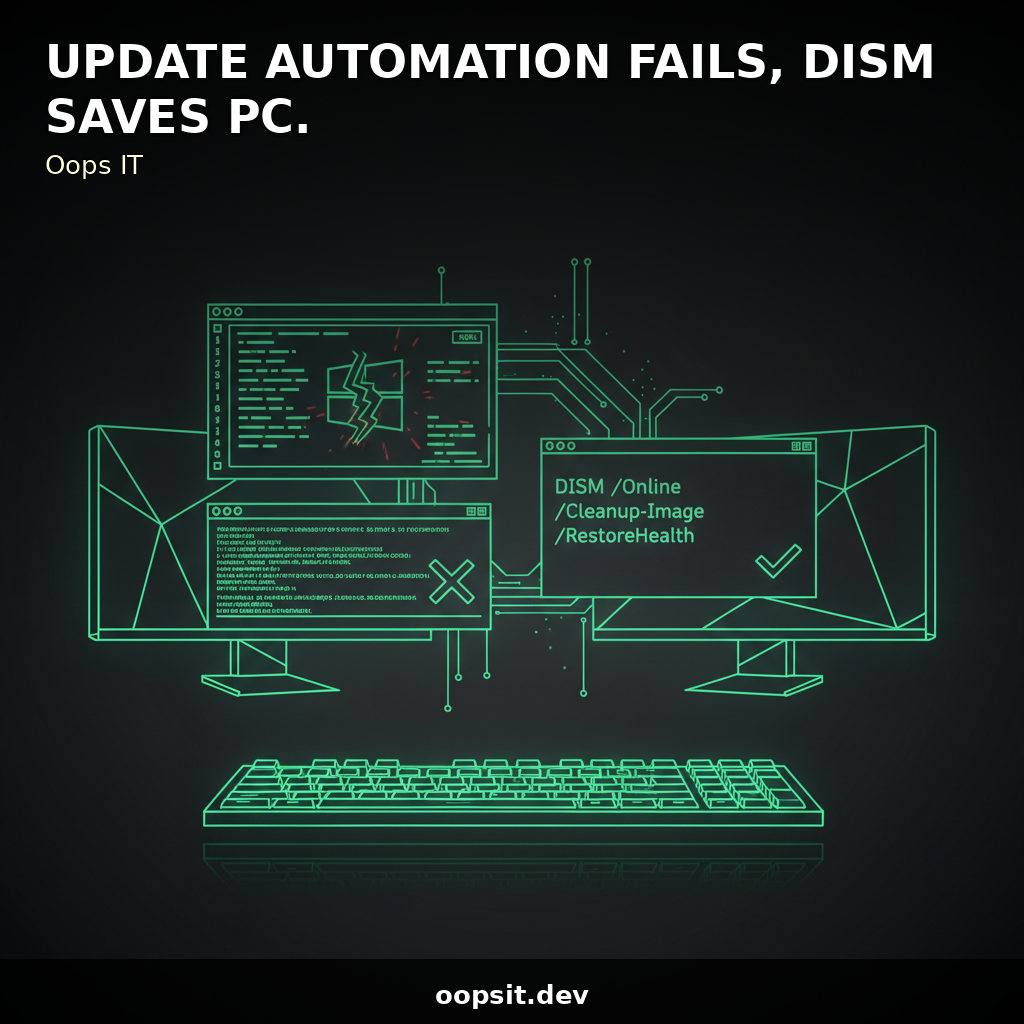
DISM /Online /Cleanup-Image /RestoreHealth
This command tells DISM to use the Windows Update service to download and replace any corrupted files. It's like telling Windows, "Hey, you're broken, please fix yourself using the official parts catalog."
The process took a while. The progress bar crawled, and I kept expecting another BSOD to pop up and mock me. But this time, it actually worked. It reported that it successfully repaired corrupted files.
Deployment Image Servicing and Management tool
Version: 10.0.19041.1Image Version: 10.0.19045.3693
[==========================100.0%==========================]
The restore operation completed successfully.
The restore operation completed successfully.
After DISM did its magic, I rebooted my PC (again, but this time with hope). And lo and behold, Windows started up normally! The errors were gone. The sluggishness disappeared. I tentatively ran Windows Update manually, and it installed the pending updates without a single complaint.
Beyond the Blue Screen: What I Learned (The Hard Way)
My ill-fated automation attempt taught me several crucial lessons, the kind you only truly learn through painful experience.
Automating without thorough testing is a recipe for disaster. My VM test was insufficient. A development machine, especially one with a complex environment, is a different beast. Always test automation on a machine that mimics your production or critical environment as closely as possible, and never start with your own primary workstation.
Understand the tools you're using. I thought I understood Windows Update and scripting, but I underestimated the complexity of the Windows component store and how easily it could be damaged by a botched update sequence.
DISM is your best friend when Windows gets sick. Seriously, learn this command. It's a powerful diagnostic and repair tool that can save you from a full reinstallation. Knowing how to access the command prompt from bootable media is also a game-changer.
Backups are not optional. This is the one I really kicked myself over. If I had a recent, verified backup, I could have restored my system in minutes and been back to work. The time I spent trying to fix the PC was far longer than it would have taken to restore from a backup. This applies to everything – code, configurations, personal files, you name it.
* Sometimes, the simplest approach is the best. While automation is great, for critical systems, a carefully planned manual update process with proper checks might be safer, at least until you're 100% confident in your automation.
So, that was my baptism by fire. My first attempt at Windows Update automation turned my PC into a very expensive paperweight, but it also introduced me to the life-saving power of DISM and reinforced the absolute necessity of robust backups. Don't make the same mistake I did! Learn from my oopsie.
Comments
Sign in to join the discussion.