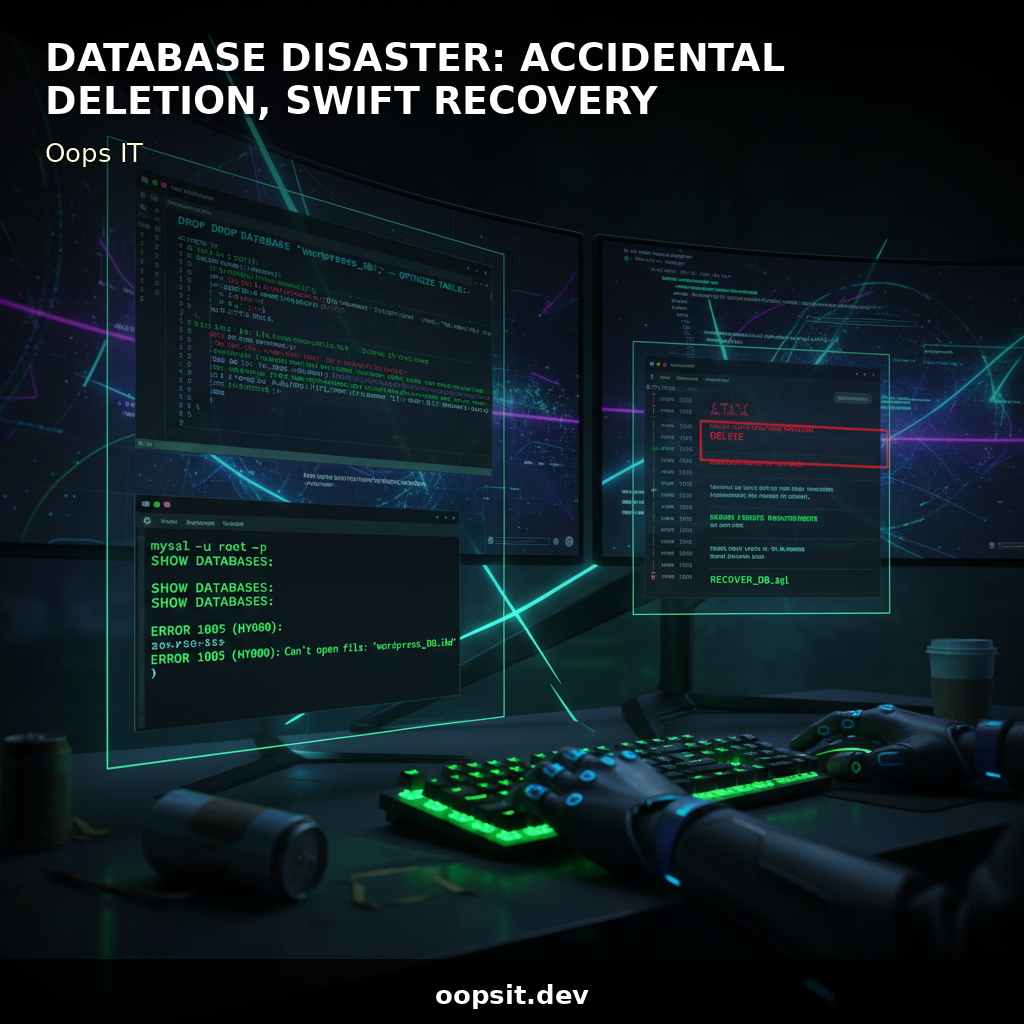
Deleted My WordPress DB: Recovery Guide
Okay, so picture this: it was a Tuesday, the kind of day that starts with a lukewarm barako coffee and ends with a frantic scramble. I was working on a client’s WordPress site, a pretty decent-sized e...

r5yn1r4143
Apr 11
Okay, so picture this: it was a Tuesday, the kind of day that starts with a lukewarm barako coffee and ends with a frantic scramble. I was working on a client’s WordPress site, a pretty decent-sized e-commerce store that was starting to feel a bit sluggish. Performance was the buzzword of the day, and my brain, fueled by too much caffeine and a misplaced sense of confidence, decided it was the perfect time to dive deep into database optimization. Famous last words, right?
My goal was simple: clean up some old revisions, transient data, and optimize the database tables. There are a ton of plugins for this, and I’d used a few before with no issues. This time, however, I decided to go a slightly more… direct route. I found a script online – looked legit, boasted impressive performance gains – and thought, "Why not?" I’d connect directly to the MySQL database and run this SQL query. What could possibly go wrong?
TL;DR: I accidentally wiped out an entire WordPress database while trying to optimize it using a direct SQL query. Thankfully, backups saved the day, but it was a heart-stopping hour of panic and recovery.
The Great Database Deletion Debacle
The script promised to "flush and optimize all tables." My rationale was that it would be faster and more thorough than any plugin. I connected to the database using phpMyAdmin, a tool I’d used countless times. I found the client’s WordPress database, took a deep breath, and pasted the script. It looked something like this (and yes, in hindsight, it looks terrible):
-- DON'T DO THIS, EVER!
FLUSH TABLES WITH READ LOCK;
DROP DATABASE your_wordpress_database_name;
CREATE DATABASE your_wordpress_database_name;
USE your_wordpress_database_name;
-- (Followed by a bunch of CREATE TABLE statements that I thought would rebuild the structure... spoiler: they didn't)
I hit ‘Go’. The spinning icon in phpMyAdmin seemed to go on forever. Then, instead of a success message or a list of optimized tables, I got… nothing. Just a blank screen. A cold dread started to creep in. I refreshed the page. The database name was gone. Gone. My blood ran cold. I tried to access the WordPress admin panel – www.clientwebsite.com/wp-admin – and was greeted with the infamous WordPress setup screen. "Error establishing a database connection."
My mind raced. What did I do? I’d executed DROP DATABASE. I hadn’t just optimized; I’d deleted it. And then I’d tried to recreate it and rebuild it with incomplete SQL statements. It was a mess. The script I’d found was clearly intended for a fresh install, not for an existing, populated database. My "optimization" had turned into a full-blown data apocalypse.
The immediate error message I saw in the browser was the classic:
Error establishing a database connection
This is WordPress’s way of saying, "Hey, I can’t talk to the database, and without that, I’m pretty much useless." This usually points to incorrect database credentials in wp-config.php, but in my case, it was far more dire: the database itself was gone.
The Scramble for Recovery: Backups to the Rescue!
Panic mode kicked in. My first instinct was to immediately confess to the client, but first, I had to fix it. My saving grace? A managed WordPress hosting provider. They actually do backups, and not just once a month. I’d always seen those backup logs and thought, "Yeah, good to have." Now, they were my lifeline.
I frantically logged into my hosting control panel. I navigated to the backup section, my fingers crossed so tight they might snap. There it was: a full database backup from just a few hours prior. Thank goodness for that! The process was surprisingly straightforward:
The hosting panel warned me that this would overwrite the current (empty) database. I confirmed, holding my breath. The restoration process took a few minutes. While it was running, I checked my wp-config.php file (located in the root directory of the WordPress installation) to ensure the database name, username, and password were still correct. They were:
// wp-config.php - basic structure
define( 'DB_NAME', 'client_wp_db_name' );
define( 'DB_USER', 'client_wp_db_user' );
define( 'DB_PASSWORD', 'a_very_long_and_secure_password' );
define( 'DB_HOST', 'localhost' ); // Or your specific DB host
Once the restore completed, I refreshed the WordPress admin page. Success! The login screen appeared. I logged in, and everything was back. Posts, pages, orders, user data – it was all there, exactly as it was before my "optimization" experiment. The relief was immense. I felt like I’d just cheated death.
Beyond the Database: Wider Implications and Lessons Learned
While the database was restored, the damage wasn't entirely undone. The site was back, but my confidence took a hit. This experience, though terrifying, taught me a lot, not just about databases, but about the broader IT landscape and the importance of good practices across different domains.
Development & Coding:
Never trust a random script: Especially if it involves direct database manipulation. Always understand what a script does before running it. If it involves DROP or DELETE statements, treat it with extreme caution.
Test in a staging environment: This is a golden rule. I should have tested that script on a development copy of the database first. A staging environment is your safety net.
Version control for EVERYTHING: While not directly applicable to the database content in this case, having version control for your code (git) is crucial. If the script had messed with your theme or plugin files, git would have saved you.
DevOps & System Administration:
Automate Backups (and verify them): This is non-negotiable. Managed hosting often handles this, but if you’re self-hosting or managing your own servers, set up a robust backup strategy. Don't just set it and forget it; verify your backups regularly to ensure they are restorable. *
Comments
Sign in to join the discussion.